View and manage your integrations with third-party scheduling portals—all in one place.
You can now add and manage multiple sets of credentials under a single integration, giving your team more flexibility and control without needing to reconfigure anything manually.
https://app.biggerpicture.co/integrations
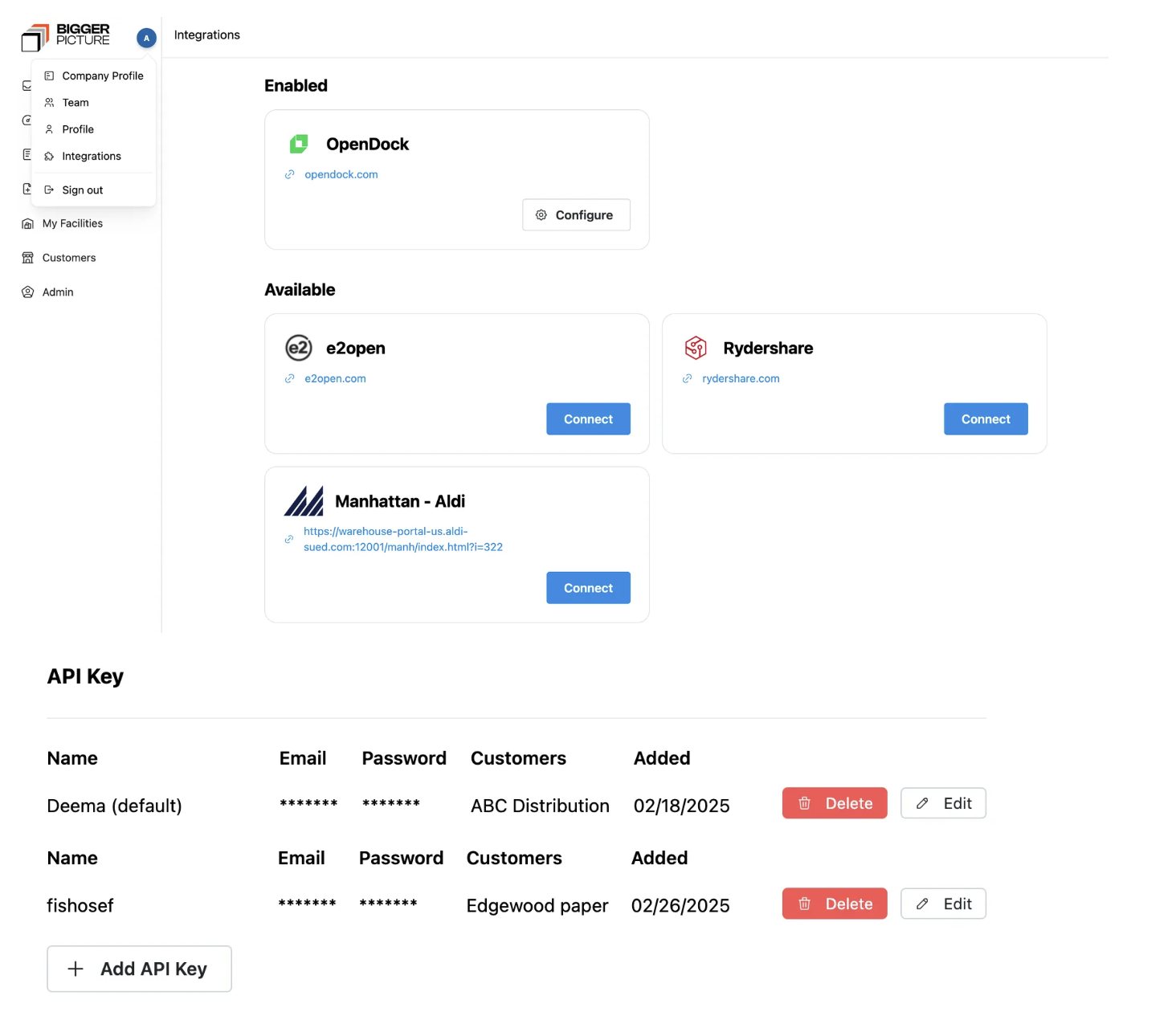
Best Practice for adding Credentials:
- Name: User the team or Customer Name (This is visible as a pick list when scheduling)
- Customer: Assign your customer to credentials.
- *Ensure the customer is not assigned to multiple credentials
- User Name and Password: Please make sure to update here when credentials change
Portal Workflows
Portals listed in the drop-down menu are integrated with your account and available for automated scheduling.
BiggerPicture will handle the login and data submission behind the scenes when scheduling through an integrated portal.
Portals listed in the drop-down are integrated with your account.
Customer TMS ID
To successfully book an appointment through a portal integration, you must enter the Customer TMS ID.
- This is typically the reference number your customer uses in their TMS (Transportation Management System).
- We will run all reference numbers associated with the stop or reference fields tied to the shipment level details.
- If the reference number is not in the stop-level details or general reference fields, we will not be able to locate it.
- It ensures the shipment is matched correctly within the facility’s portal and allows BiggerPicture to complete the booking on your behalf.
In BiggerPicture, look at the customer TMS ID listed on the shipment level. If it does not match, edit the order with the reference number used to search it and try again.
? Tip: If you're unsure where to find the Customer TMS ID, it is usually the reference number used to search orders in the customer TMS or booking portal.
How to Switch Credentials
When scheduling a shipment:
- Go to the scheduling window
- Scroll to the bottom, where the scheduling method is listed
- Click “Change” to select the appropriate credential
2FA Credentials:
They will not be supported unless we have set up your specific login with the 2FA workflow. Please reach out to customer service if you have a 2FA enabled on your login.
Integration Troubleshooting:
- PO: Verify that the associated PO is correct
- Multiple POs: Make sure to use commas in between multiple POs vs. a "/" symbol
- Login Credentials: Ensure username and password are correct
- Target Date: Confirm target date in BP is accurate
- Dock Filtering: In order to circumvent the FTL dock filter, edit the shipment mode to LTL in order to access more dock availability
Was this article helpful?
That’s Great!
Thank you for your feedback
Sorry! We couldn't be helpful
Thank you for your feedback
Feedback sent
We appreciate your effort and will try to fix the article