Follow these steps to schedule a shipment from scratch with a facility. From the main portal, you’ll select a facility, enter shipment details, and choose a date and time for the appointment. This is
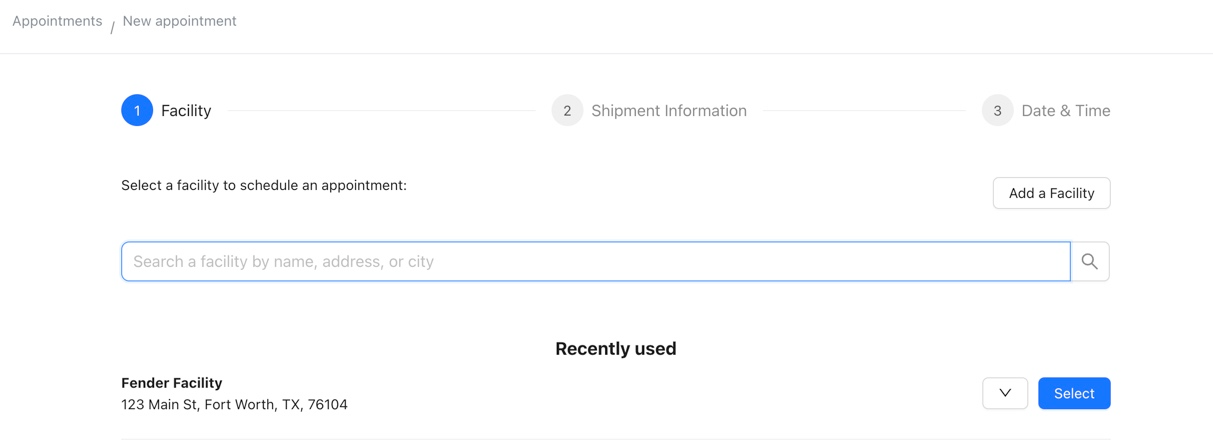
Select A Facility
As a carrier user, you can search for and select a facility to schedule an appointment. You’ll also see a “Recently Used” section with your most frequently scheduled locations for quick access.
If the facility is new to your organization but already exists in BiggerPicture, you can still schedule directly with it.
To view more information about a facility, such as shipping & receiving hours or appointment windows, click the facility name and select “Detailed Page.”
? Tip: To add a new facility, click “Add Facility” and enter the name and address. You can complete additional details later in the My Facilities menu.
Once selected, you can either:
Look up a recent order, or
Create a new order to continue.
Add Shipment Information
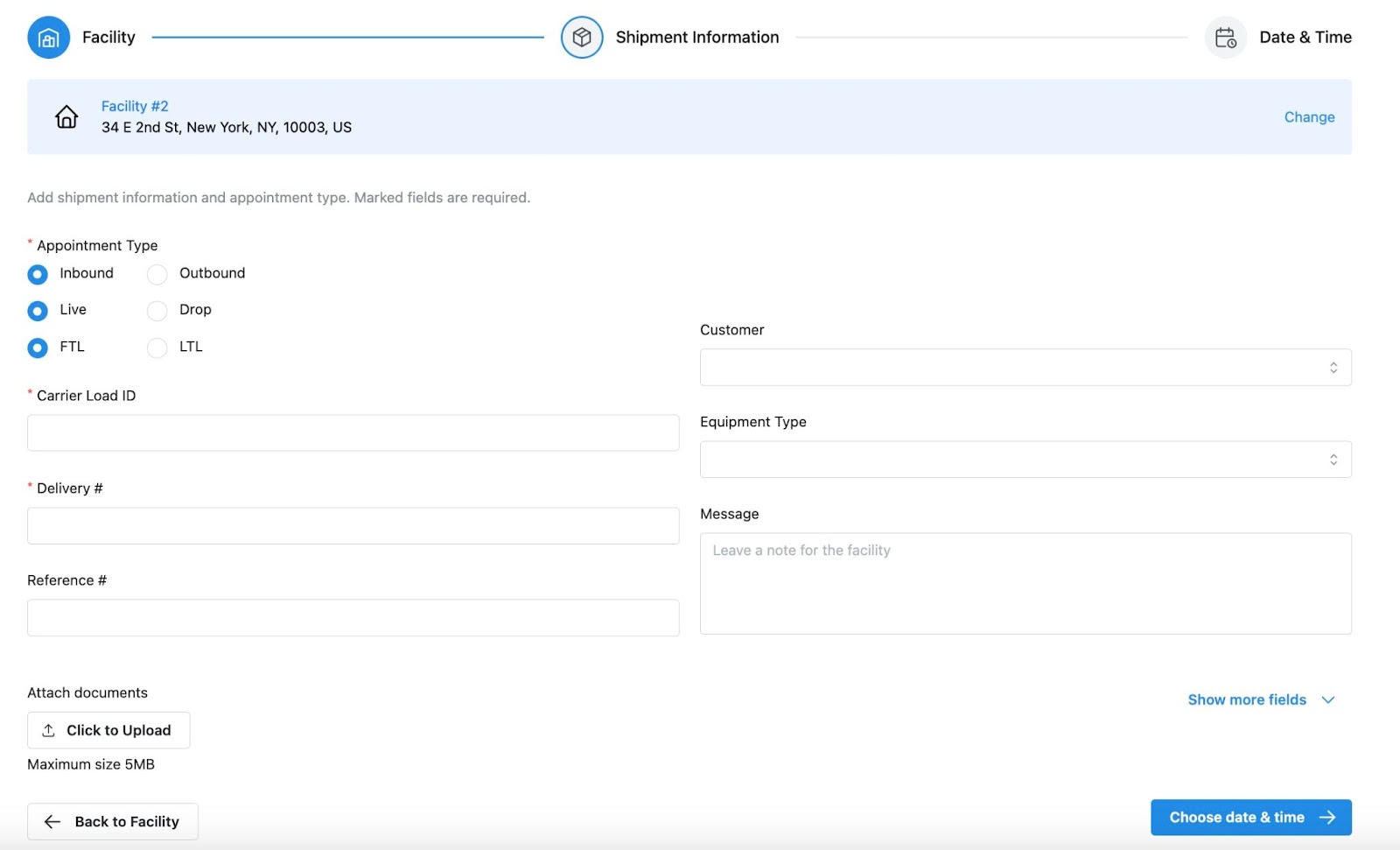
After selecting a facility, fill out the shipment details:
Appointment Type (Inbound / Outbound)
Live / Drop
FTL / LTL
Carrier Load ID
Pickup or Delivery #
Reference Number
Customer
Equipment Type
Message (Optional note to facility)
Product Description
Temperature (Dry, Ambient, Fresh, Frozen)
Loading Type (Pallet, Floor, Slip Sheet)
Number of Pieces
Attachments / Documents
⚠ Note: If a shipment was created by the shipper via API but is still unscheduled, you can search by PO #, BOL #, or another reference number to locate and schedule it.
Scheduling First-Time Appointments
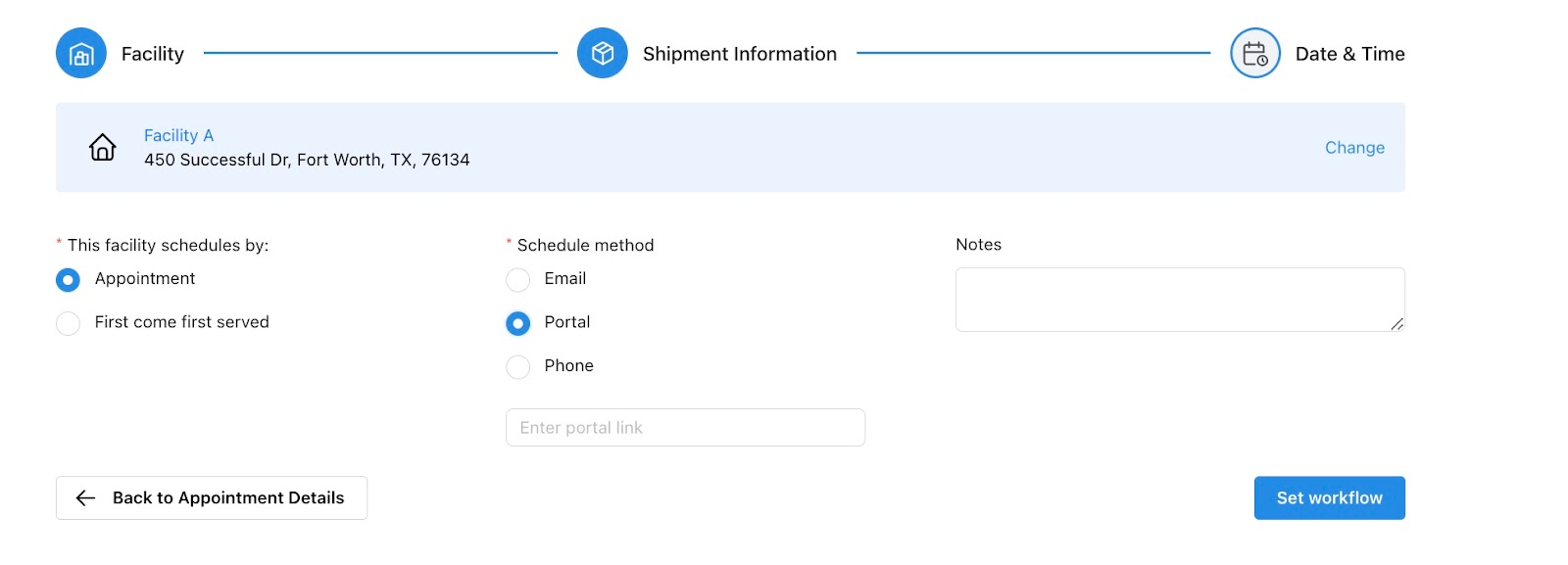
When scheduling with a facility for the first time in BiggerPicture, you’ll need to define the scheduling method:
Portal: Add the scheduling portal URL
Phone: Add the contact phone number
First-Come-First-Served (FCFS): Choose whether the facility should receive notifications for each appointment
Select Date & Time
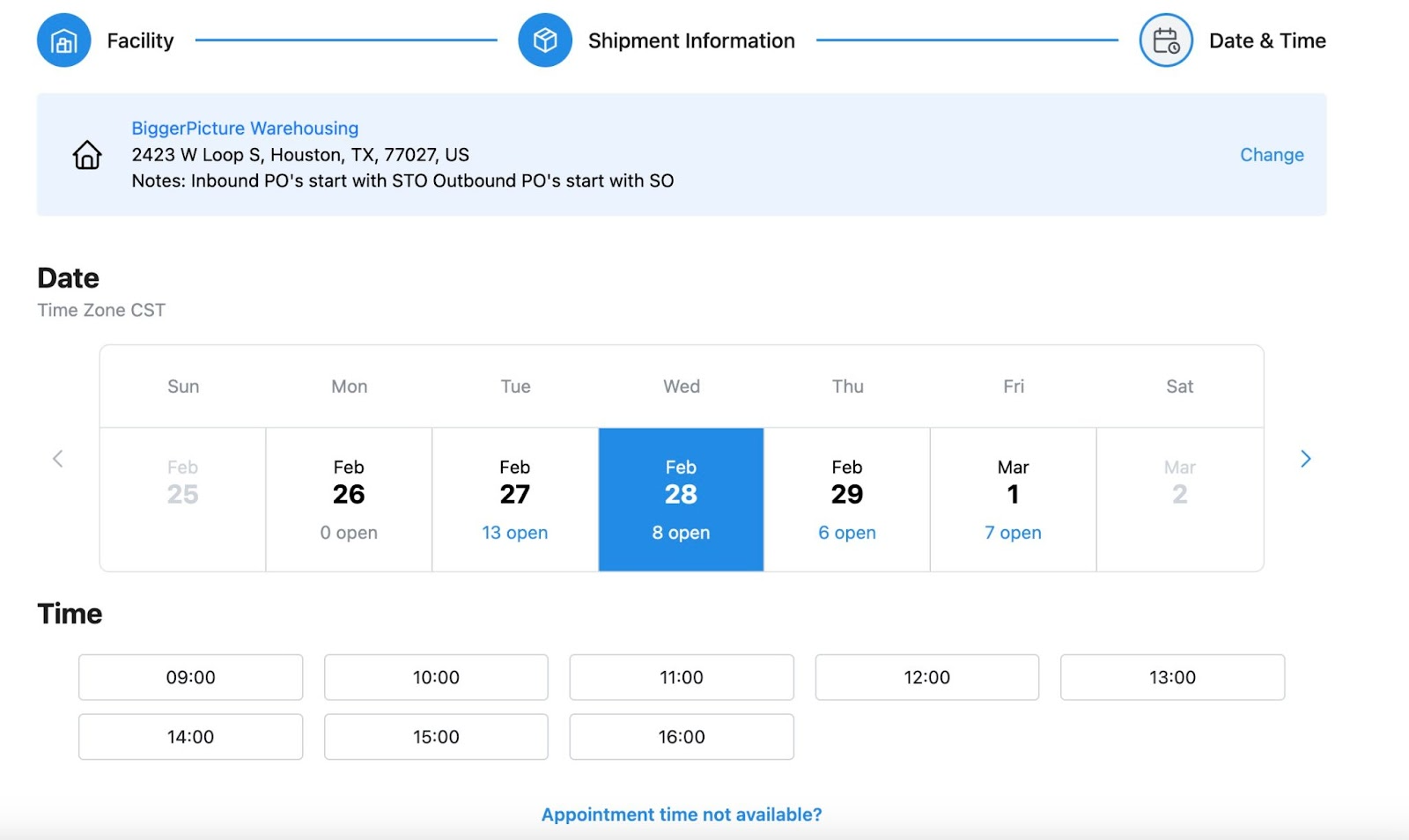
If the facility is active on BiggerPicture, you’ll see a calendar view with available time slots. If not, you’ll be prompted to send a templated email request to the facility.
⚠ Note: For shipments with more than two stops, BiggerPicture will suggest an optimized appointment time.
Calendar View Options
Available time slots reflect the facility’s capacity and shipping/receiving hours.
For LTL shipments, select a time window designated by the facility.
For FCFS facilities, select from the facility’s operating hours. If no capacity is set, you can choose a date for your request.
If no desired slot is available, click “Appointment Slot Not Available” to submit a custom request with your preferred date, time, and note. The facility will be prompted to confirm or decline.
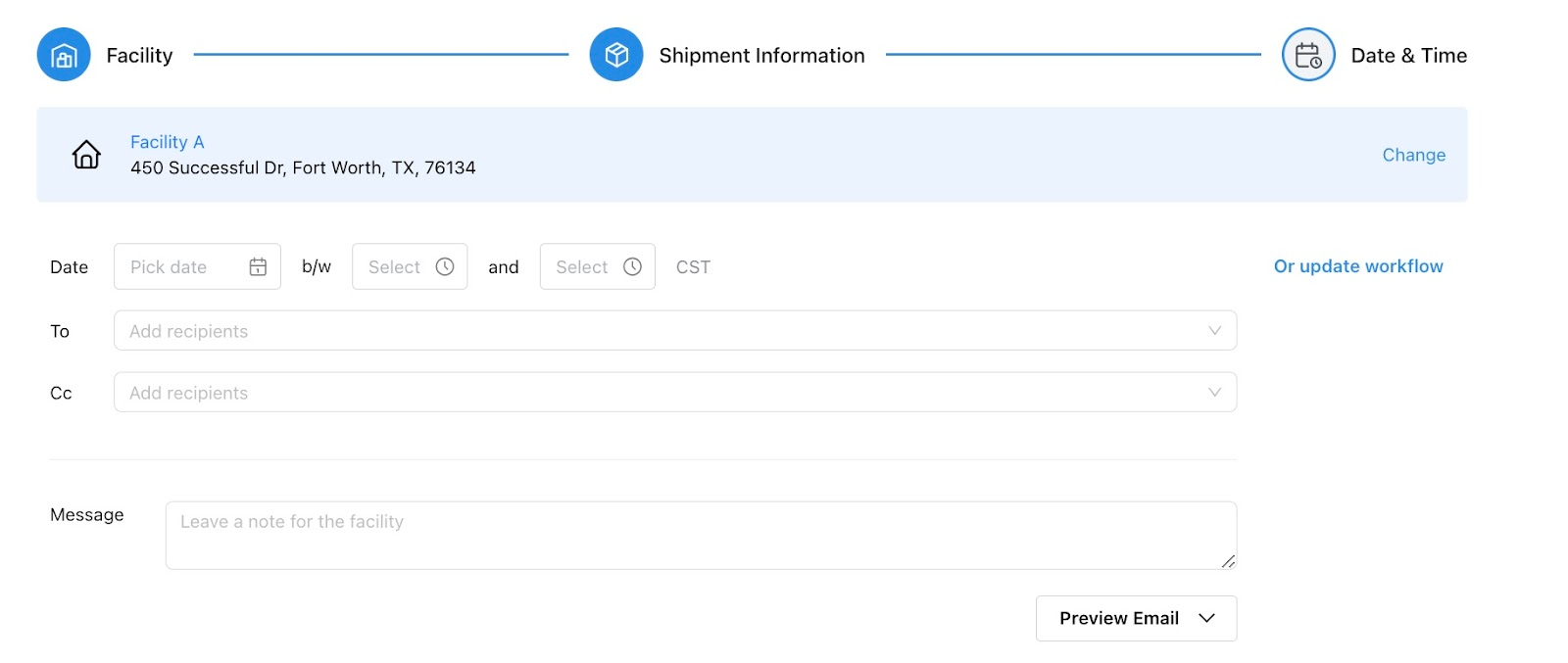
Email Request (For Non-Integrated Facilities)
If scheduling via email:
Select the date and time
Add recipients (if not already saved)
Optionally add a note
Preview and send the email request
Appointment Status and Notifications
After submitting the appointment request:
The facility contact receives an email to confirm or decline the appointment
If appointment notifications are enabled, you’ll get an update once it’s confirmed or declined
If there’s no response within 24 hours, the system automatically sends a follow-up reminder
Add a Stop
To include another stop in the shipment:
Click “Add a Stop”
Select the next facility
Choose the appointment date and time
View the mileage between the final stop and the added stop

Was this article helpful?
That’s Great!
Thank you for your feedback
Sorry! We couldn't be helpful
Thank you for your feedback
Feedback sent
We appreciate your effort and will try to fix the article