Bulk Scheduling
Reduce inbox noise and improve coordination by combining multiple requests into a single email.
How it Works:
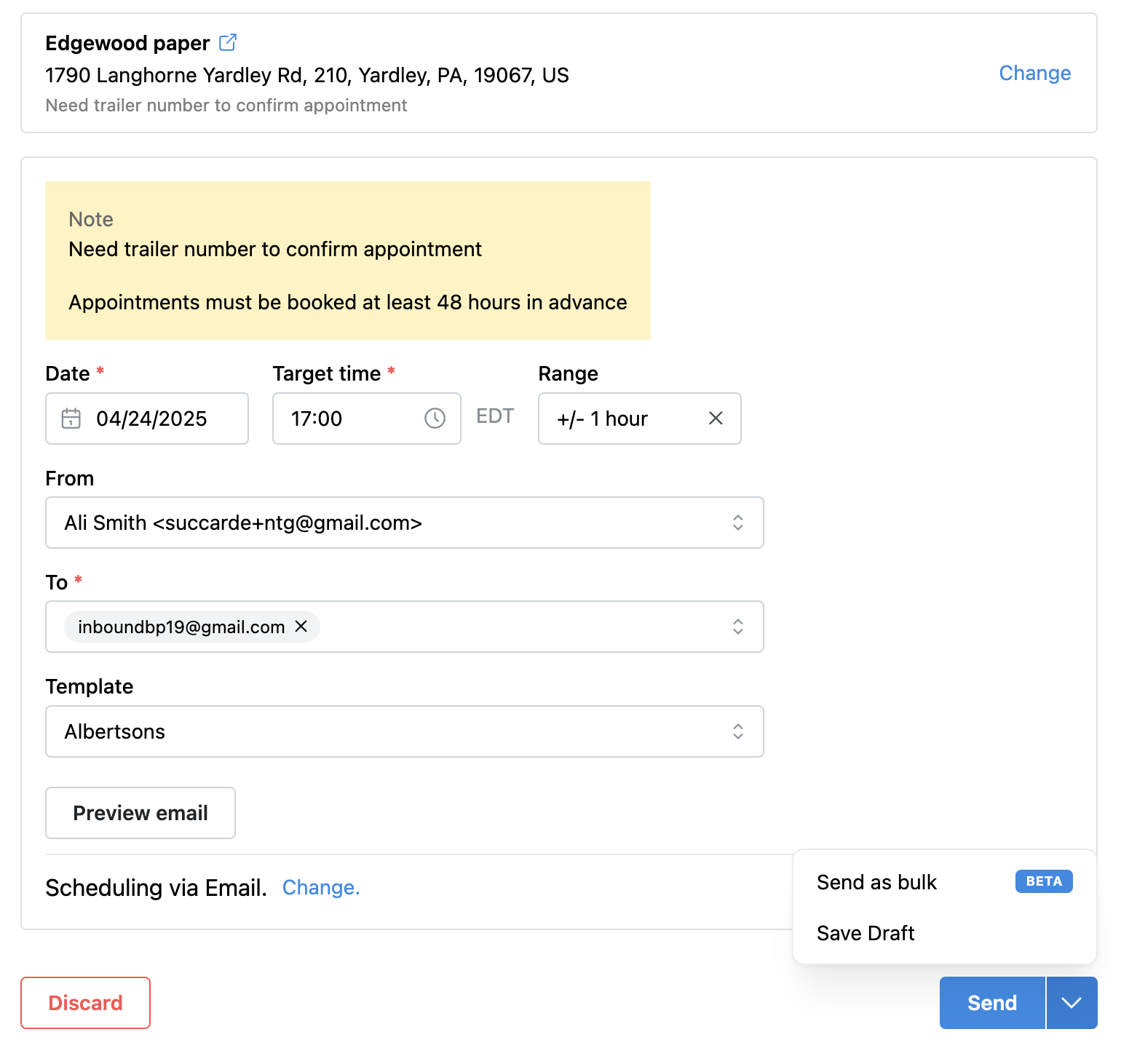
For each stop, add the target date/time and “Send as Bulk”
→ This saves your draft to the Bulk Appointment Page
On the Bulk Appointment Page
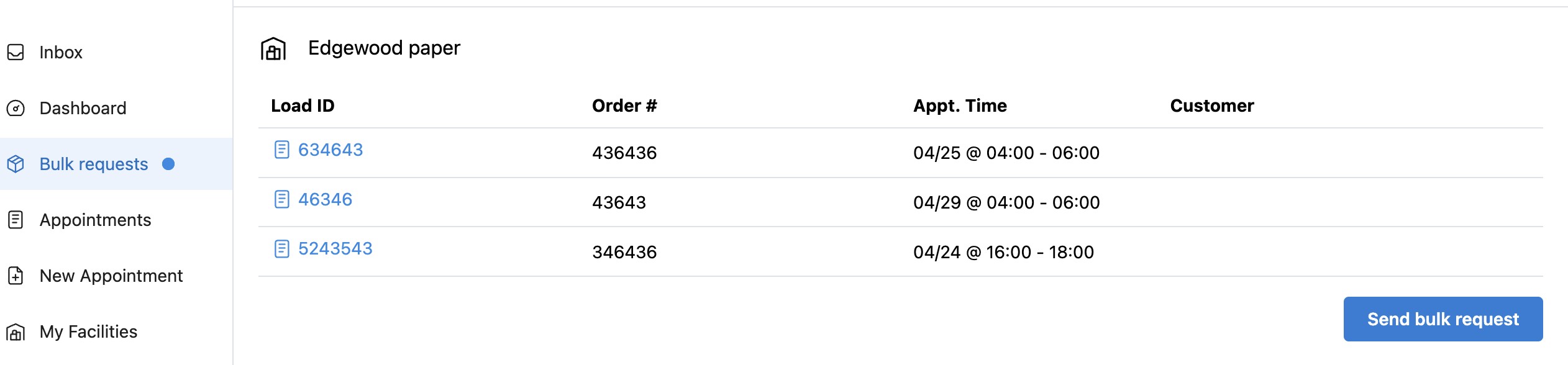
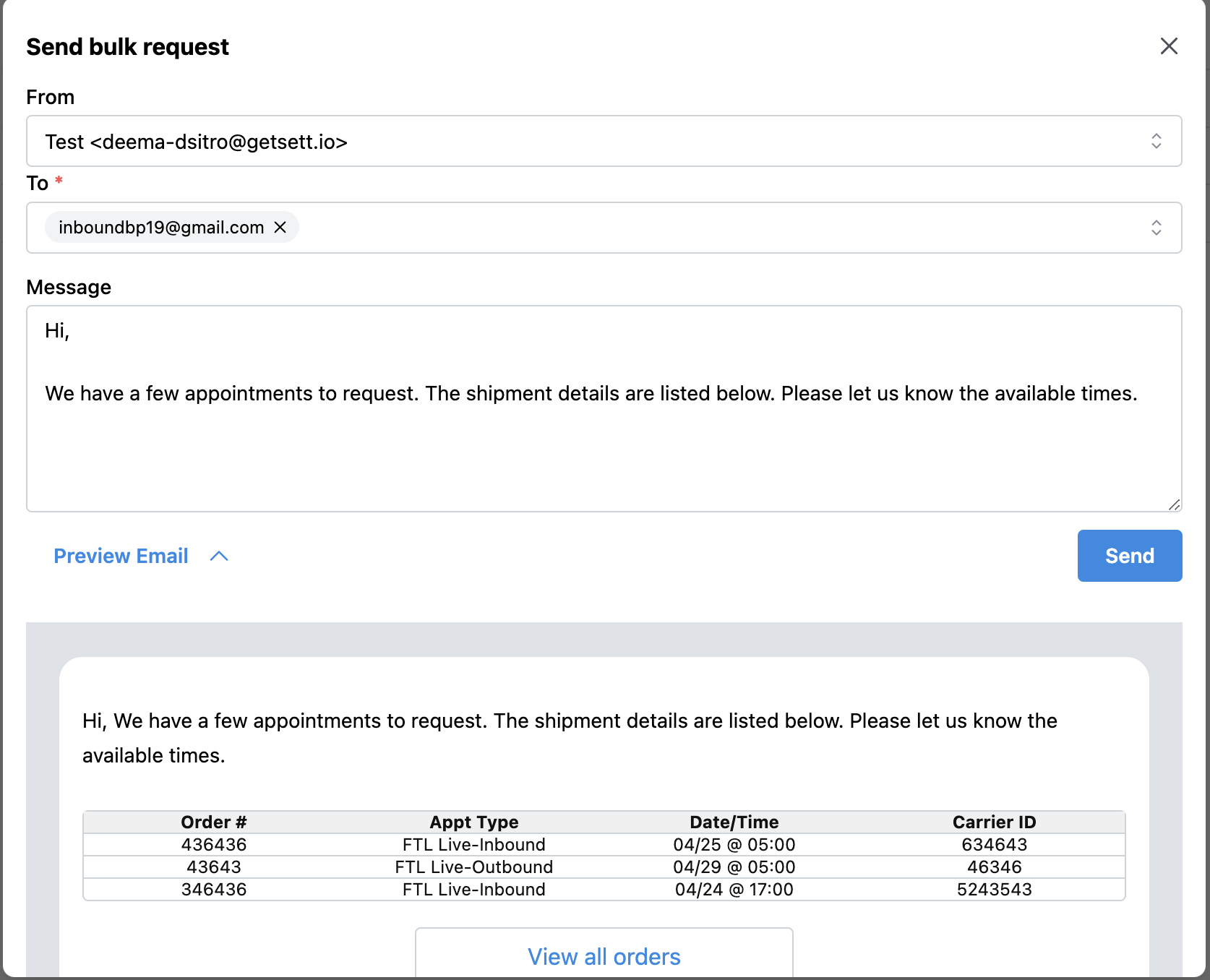
- Add your message
- Select the contact(s)
- Review shipment details
- Click Schedule and Send to finalize
⚠️ Important Notes:
- Reply messages from the facility will be linked to every appointment included in the bulk email.
- If you'd like to send an individual shipment separately, click Schedule and Send within that appointment—it will be removed from the bulk draft grouping.
Was this article helpful?
That’s Great!
Thank you for your feedback
Sorry! We couldn't be helpful
Thank you for your feedback
Feedback sent
We appreciate your effort and will try to fix the article